
Why Migrate from Hugo to ASP.NET Core?
I have been using Hugo for building landing pages for my projects and it has been doing a great job. But every time I build a new site I have used a new theme and have to create a new layout in Hugo for it, and I never felt comfortable with Hugo's Go-based templates. So I have been thinking that I should create the sites in Asp.Net instead as this is a platform I know very well. And now I have decided to migrate the landing page for my tool WebMaestro to Asp.Net as the first step in this process.
The free hosting on Netlify and Azure Static Websites has been sweet, but to host on Azure App Service on Linux is actually not that expensive. Especially if you host multiple sites on the same App Service Plan. So that was also a reason to start this project.
What initially triggered me to start this project is the YouTube video (My website loading in sub 30ms) by Aaron Francis where he creates a minimal CMS with Laravel Vapor and SQLite.
I was very fond of the idea to use Markdown files for the content as I was used to that from Hugo. I spent some time thinking on how to/if I should use SQLite as a content database. But as I couldn't copy how Aaron did it with Laravel because of the differences in how Laravel and Asp.Net works I decided to keep it simple. So I will use the file system for the content just like dasBlog does it, but I will use Markdown files instead of XML files.
One of the main goals with this project is to keep it as simple as possible. I will not try to optimize it for performance until later on. If I find out that it will impact performance too much from the App Service I will put it behind a Cloudflare cache or something similar.
Defining the Markdown Content Structure
What I like about Markdown is the ability to embed metadata using YAML Front Matter in the file. Of course this is also possible with JSON and XML, but the editing experience is not as good as with Markdown. I also like the simplicity of Markdown. It is easy to read and write.
I will use the following attributes in the front matter:
---
title: "Create request from raw HTTP"
author: "Kjell-Åke Gafvelin"
published: "2022-09-04"
updated: "2024-03-01"
description: "Creating requests from raw HTTP can help you when debugging APIs"
draft: false
---
These attributes provide everything needed to render the blog. As the CMS grows, I can easily add more metadata fields.
Configuring the Project to Copy Markdown Files
When it comes to the files I will, as said earlier, keep it simple and use the following structure:
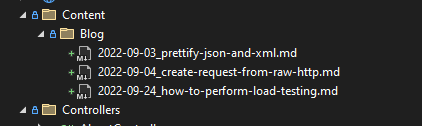
I decided to group all content in the Content folder and then have a folder for each content type. So in case I later on will add a Docs section or a FAQ section I can just add a folder for that content type.
When it comes to the naming of the files I will use the pattern YYYY-MM-DD_this-is-the-title.md for the blog posts. This way it is easy to sort the files and also easy to see when the post was published. But when I display the post on the site I will display the attributes from the front matter.
When adding the markdown files to the project in Visual Studio they will be added as a plain file with the property Copy to Output Directory set to Do not copy. This means that the file will not be copied to the output directory when building the project. To get them copied to the output directory it is necessary to change the property to Copy if newer.
To make it easier for me so I don't have to remember to change this property for each file I will add a target to the .csproj file that changes the property for all files in the Content folder.
  <ItemGroup>
    <None Include="Content\**\*.md">
      <CopyToOutputDirectory>PreserveNewest</CopyToOutputDirectory>
    </None>
  </ItemGroup>
Deserializing YAML Front Matter with YamlDotNet
When reading the files I needed to have a class that I could deserialize the YAML front matter to. So I created a class called ContentFile for this purpose. Then I could use that file when I render the pages.
public class ContentFile
{
    [YamlMember(Alias = "title")]
    public string? Title { get; set; }
    [YamlMember(Alias = "date")]
    public string? Date { get; set; }
    [YamlMember(Alias = "draft")]
    public bool Draft { get; set; } = false;
    [YamlMember(Alias = "slug")]
    public string? Slug { get; set; }
    [YamlMember(Alias = "author")]
    public string? Author { get; set; }
    [YamlMember(Alias = "description")]
    public string? Description { get; set; }
    public string? Content { get; set; }
    public string? Path { get; set; }
}
Then to actually read the files I created a class called ContentService that reads the files and deserializes the front matter to the ContentFile class.
public class ContentService
{
    private readonly ILogger<ContentService> logger;
    private readonly Slugify.SlugHelper slugHelper = new();

    public ContentService(ILogger<ContentService> logger)
    {
        this.logger = logger;
    }

    public List<ContentFile> GetFiles()
    {
        var files = new List<ContentFile>();
        var path = Path.Combine(Directory.GetCurrentDirectory(), "content", "blog");
        var directory = new DirectoryInfo(path);
        var markdownFiles = directory.GetFiles("*.md");
        foreach (var file in markdownFiles)
        {
            var yaml = StringBuilderCache.Local();

            using (var reader = file.OpenText())
            {
                var text = reader.ReadLine();

                if (text != null && text.StartsWith("---"))
                {
                    bool continueReading = true;
                    do
                    {
                        text = reader.ReadLine();

                        if (text != null && text.StartsWith("---"))
                        {
                            continueReading = false;
                        }
                        else
                        {
                            yaml.AppendLine(text);
                        }

                    }
                    while (continueReading);

                    var mdFile = new YamlDotNet.Serialization.Deserializer().Deserialize<ContentFile>(yaml.ToString());
                    mdFile.Slug = slugHelper.GenerateSlug(mdFile.Title);
                    mdFile.Path = file.FullName;
                    files.Add(mdFile);
                }
            }
        }

        return files;
    }

    public ContentFile? GetFile(string slug)
    {
        var files = GetFiles();

        var file = files.FirstOrDefault(x => x.Slug == slug);

        if (file == null)
        {
            return null;
        }

        var markdown = File.ReadAllText(file.Path!);

        var pipeline = new MarkdownPipelineBuilder()
            .UseYamlFrontMatter()
            .Build();

        file.Content = Markdown.ToHtml(markdown, pipeline);
        return file;
    }
}
I read all the files in the GetFiles method to be able to create the list of all blog posts. I do have a small optimization in the GetFile method where I only read the front matter of each file. I then deserialize this to the ContentFile class using the YamlDotNet library. To generate the slug for the page I use the Slugify.Core library.
Reading and Parsing Markdown with Markdig
To then get the content of the file I use the GetFile method. I simply read the file as text and then use the Markdig library to convert the Markdown to HTML. One thing to note here is that I use the UseYamlFrontMatter method in the MarkdownPipelineBuilder so that the front matter will not be rendered to HTML.
And to use this service I added the ContentService as a singleton to the dependency injection container in the Program.cs file.
builder.Services.AddSingleton<ContentService>();
Building the ASP.NET Core Blog Controller & Route Handlers
After this I created a BlogController that uses the ContentService to get the list of blog posts and to get the content of a single blog post.
public class BlogController : Controller
{
    private readonly ContentService markdownService;

    public BlogController(ContentService markdownService)
    {
        this.markdownService = markdownService;
    }

    [Route("blog/{slug?}/")]
    public IActionResult Index(string? slug)
    {
        if (slug == null)
        {
            var files = markdownService.GetFiles().OrderByDescending(x => x.Date).ToList();
            return View("Index", files);
        }

        var file = markdownService.GetFile(slug);
        return View("Post", file);
    }
}
Creating the Razor Views for the Blog Index and Post
Now that I have the controller I can create the views for the blog. I will start with the Index view that lists all the blog posts.
@model List<WebMaestro_Web.Services.ContentFile>
<section id="blog" class="iq-page-blog overview-block-ptb">
<div class="container">
<div class="row">
<div class="col-md-12 col-sm-12">
@foreach (var post in Model)
{
<div class="iq-blog-box iq-mt-40">
<div class="iq-blog-detail">
<div class="blog-title"> <a href="/blog/@(post.Slug)/"><h5 class="iq-tw-6 iq-mb-10">@(post.Title)</h5></a></div>
<div class="blog-content">
<p>@(post.Description)</p>
</div>
<div class="iq-blog-meta">
<ul class="list-inline">
<li class="list-inline-item"><i class="fa fa-calendar" aria-hidden="true"></i> @(post.Date)</li>
</ul>
</div>
</div>
</div>
}
</div>
</div>
</div>
</section>
Which will render the list of blog posts like this:
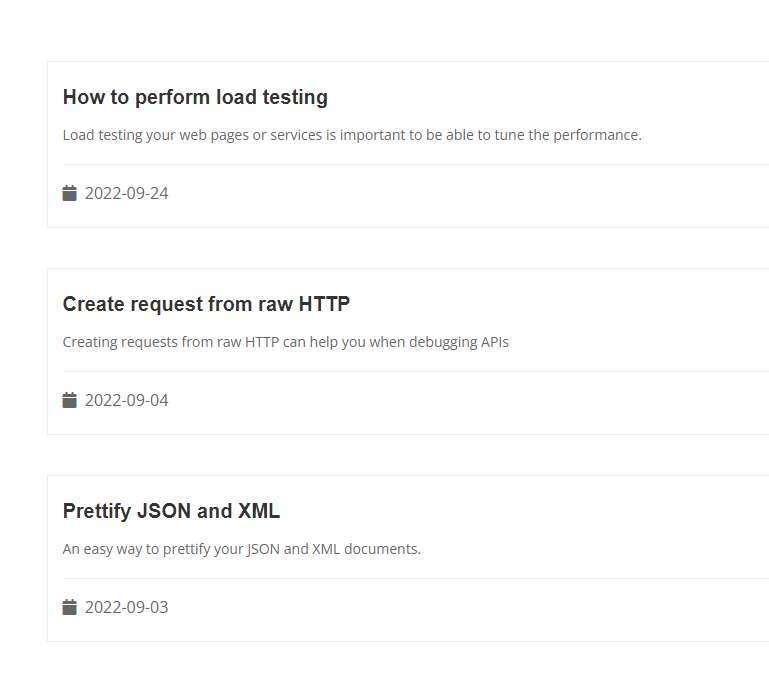
And then I created the Post view that renders the content of a single blog post.
@model ContentFile
<section id="blog" class="iq-page-blog overview-block-ptb">
<div class="container">
<div class="row">
<div class="col-md-12 col-sm-12">
<div class="iq-blog-box iq-mt-40">
<div class="iq-blog-detail">
<div class="blog-title iq-mb-10">
<h5 class="iq-tw-6">@(Model.Title)</h5>
<div style="font-size: smaller;"> <i class="fa fa-calendar" aria-hidden="true"></i> @(Model.Date)</div>
</div>
<div class="blog-content">
@(Html.Raw(Model.Content))
</div>
<div class="iq-post-author iq-mt-20 iq-pall-30 blue-bg">
<div class="iq-post-author-pic iq-mr-25">
<img alt="#" class="rounded-circle" width="75" height="75" src="/images/kjell-ake-gafvelin.jpg">
</div>
<div class="iq-comment-content">
<div class="iq-comment-author">
<a class="lead iq-mtb-10 iq-tw-6 iq-font-white" href="javascript:void(0)">Kjell-Åke Gafvelin</a>
</div>
<p class="iq-font-white">Founder and developer of WebMaestro</p>
</div>
</div>
</div>
</div>
</div>
</div>
</div>
</section>
The blog post will then be rendered like this:
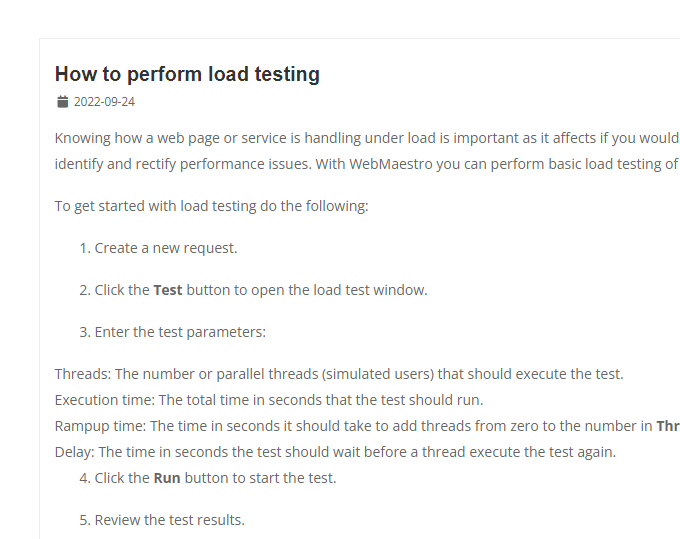
So now I have a starting point for my minimal CMS. This is a very simple implementation and I really like that. Often we developers tend to overcomplicate things and I have been guilty of that many times.
What's Next?
In the next part I will add features for the Docs section of WebMaestro so that I can start to migrate the content from the Hugo site to the Asp.Net site.